
Zoom users often have camera issues, so let’s start looking at some possible problems and their fixes. Let’s start with the most obvious potential issue. The camera may be turned off by default, so click the camera icon in the taskbar to turn it on. If an error message pops up saying that the video can’t be started when you click the button, the problem is your PC’s settings.
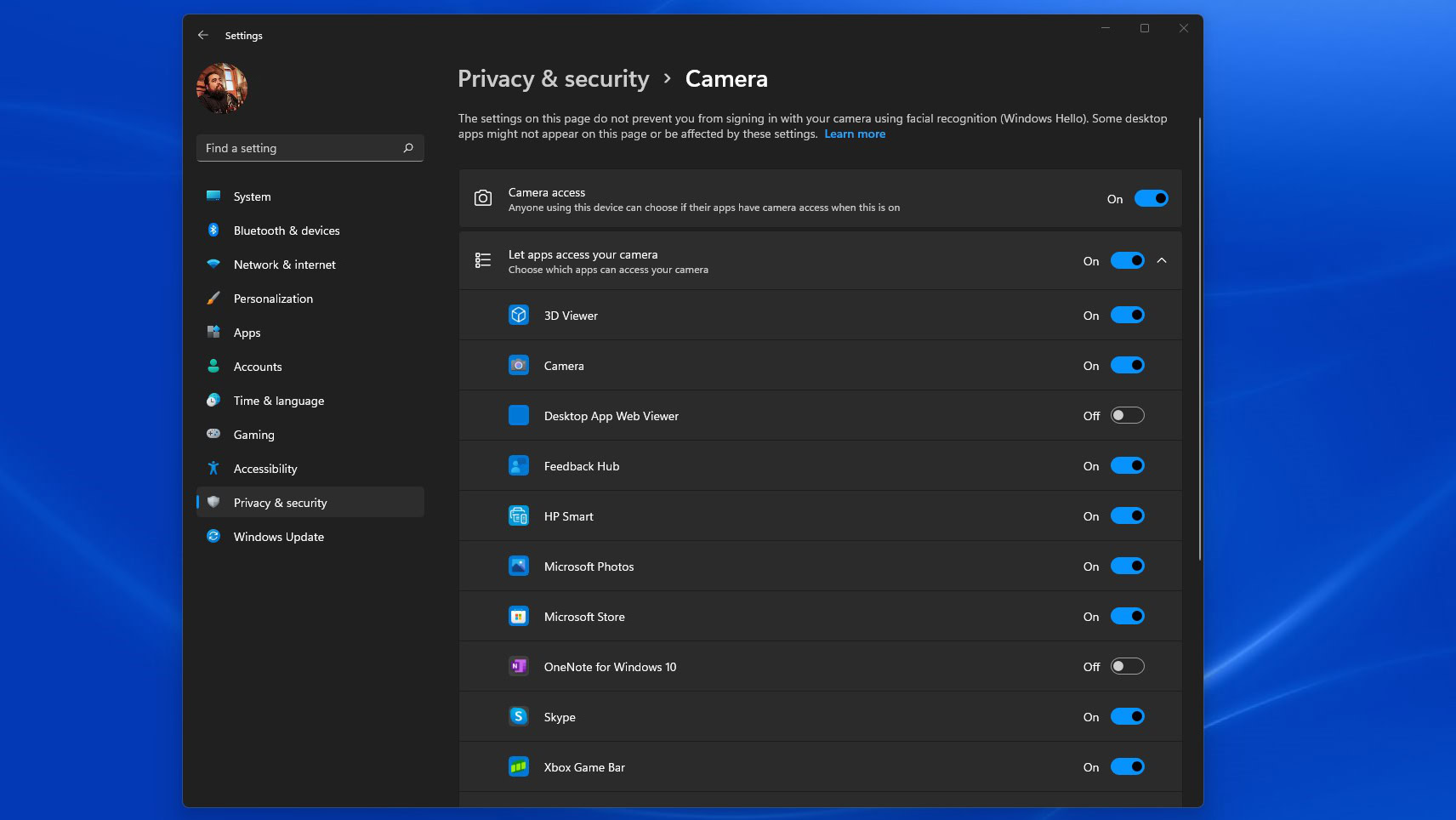
To fix this Zoom issue on Windows 10, go to the Windows Settings, go into Privacy & security, and select Camera. Make sure the toggle under the Camera access section is on. Also, ensure Zoom has access to the camera by toggling the option under the Let apps access your camera section.
How to give Zoom permission to access your camera:
- Open the Windows Settings app.
- Go into Privacy & security.
- Select Camera.
- Toggle on the Camera access option.
- Make sure Zoom is toggled on under the Let apps access your camera section. Also, toggle on Let desktop apps access your camera.

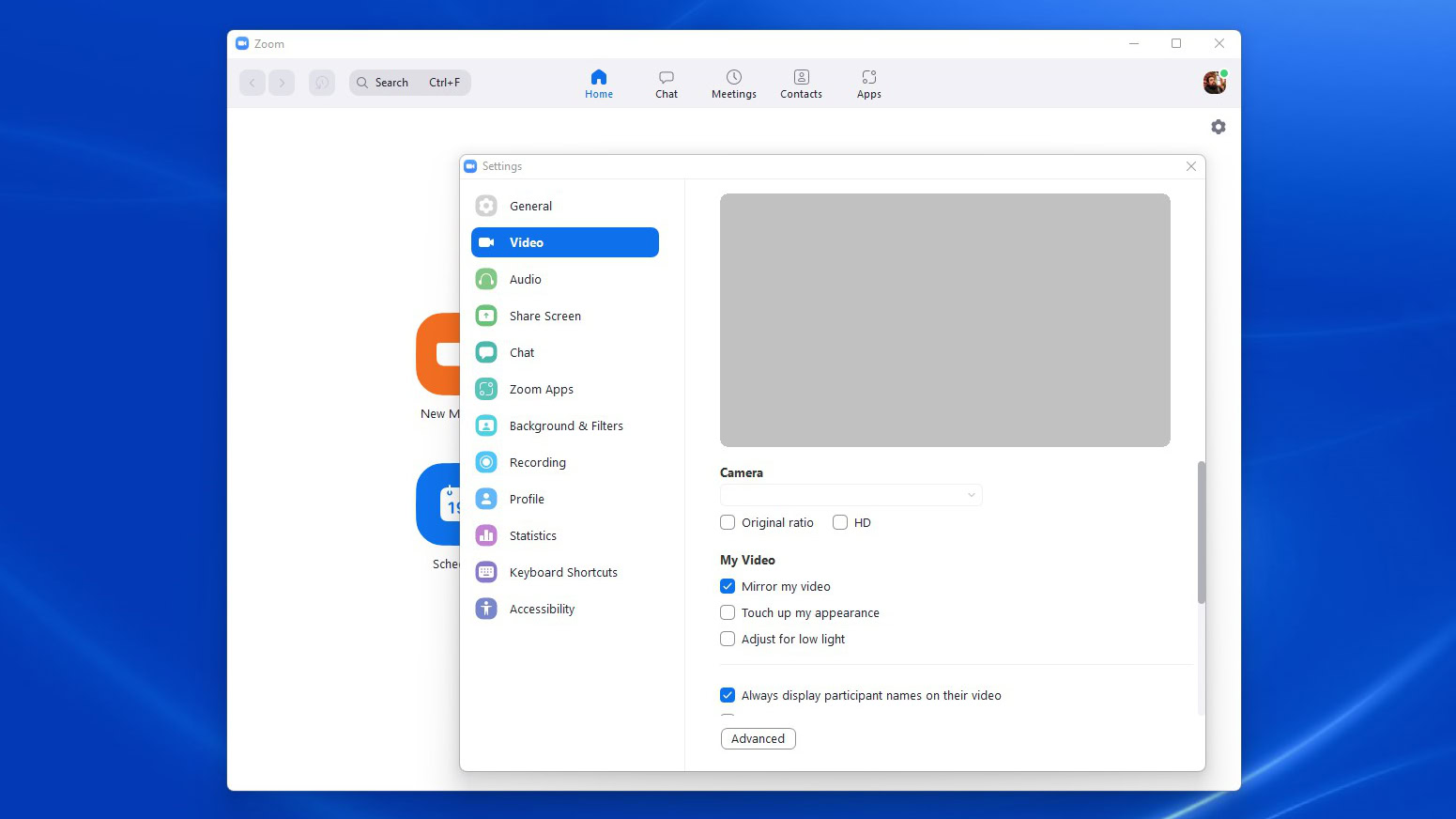
If you have multiple cameras (like your laptop’s and a separate webcam), ensure you selected the right one in the settings. Go to Settings in Zoom and then Video to choose the right device.
How to pick your camera on Zoom:
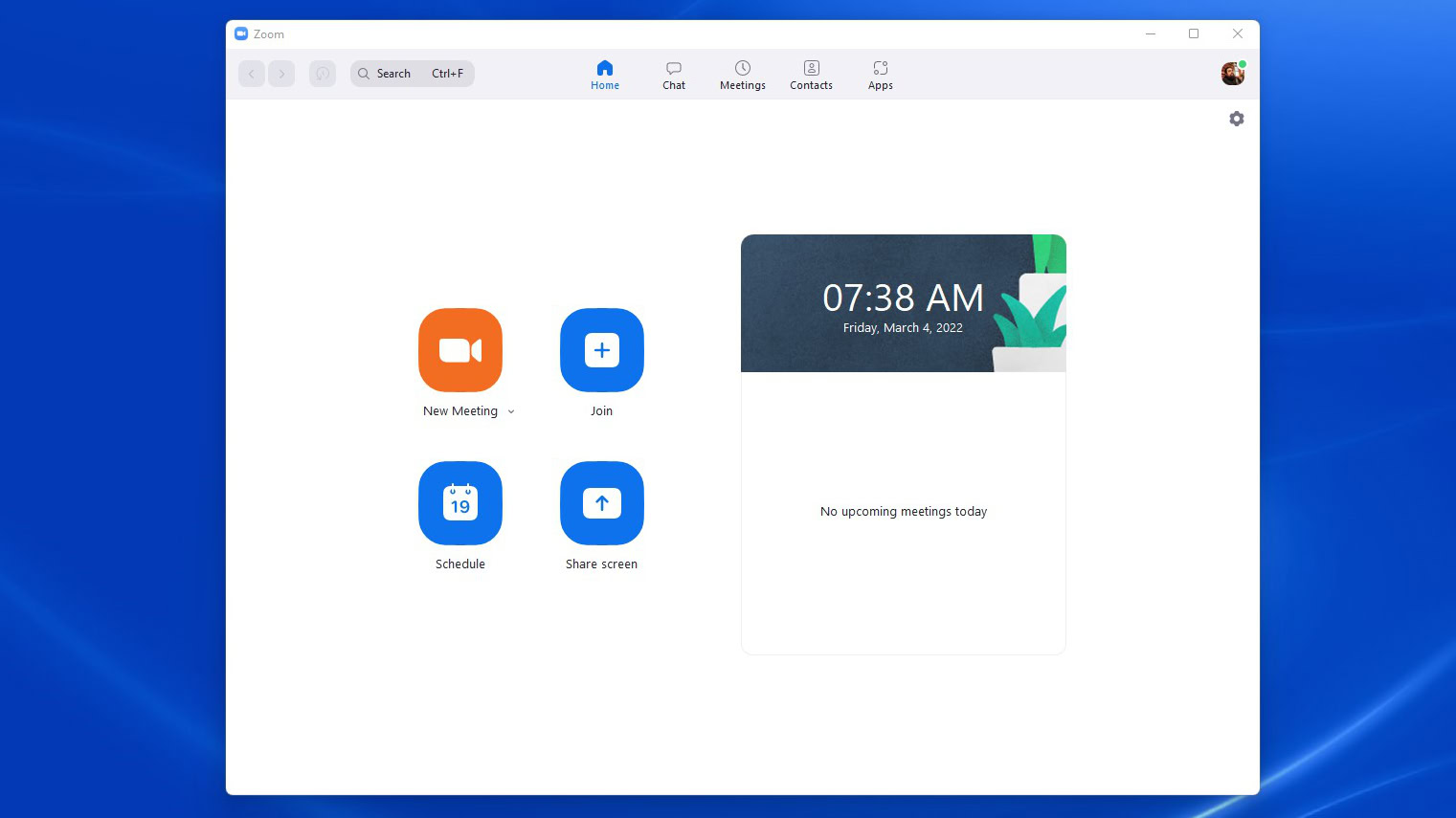
- Open Zoom.
- Click on the Settings gear icon.
- Click on the Video tab in the left column.
- Under Camera, expand the picker and select the camera you want to use.
If you use multiple apps that take advantage of the camera, other software might be occupying it. Make sure to close any unneeded apps. If all fails, Zoom recommends uninstalling and installing the application. You can also close and reopen the page if you’re using a browser.
If you are using a laptop with a camera cover, just slide the cover to open the camera.